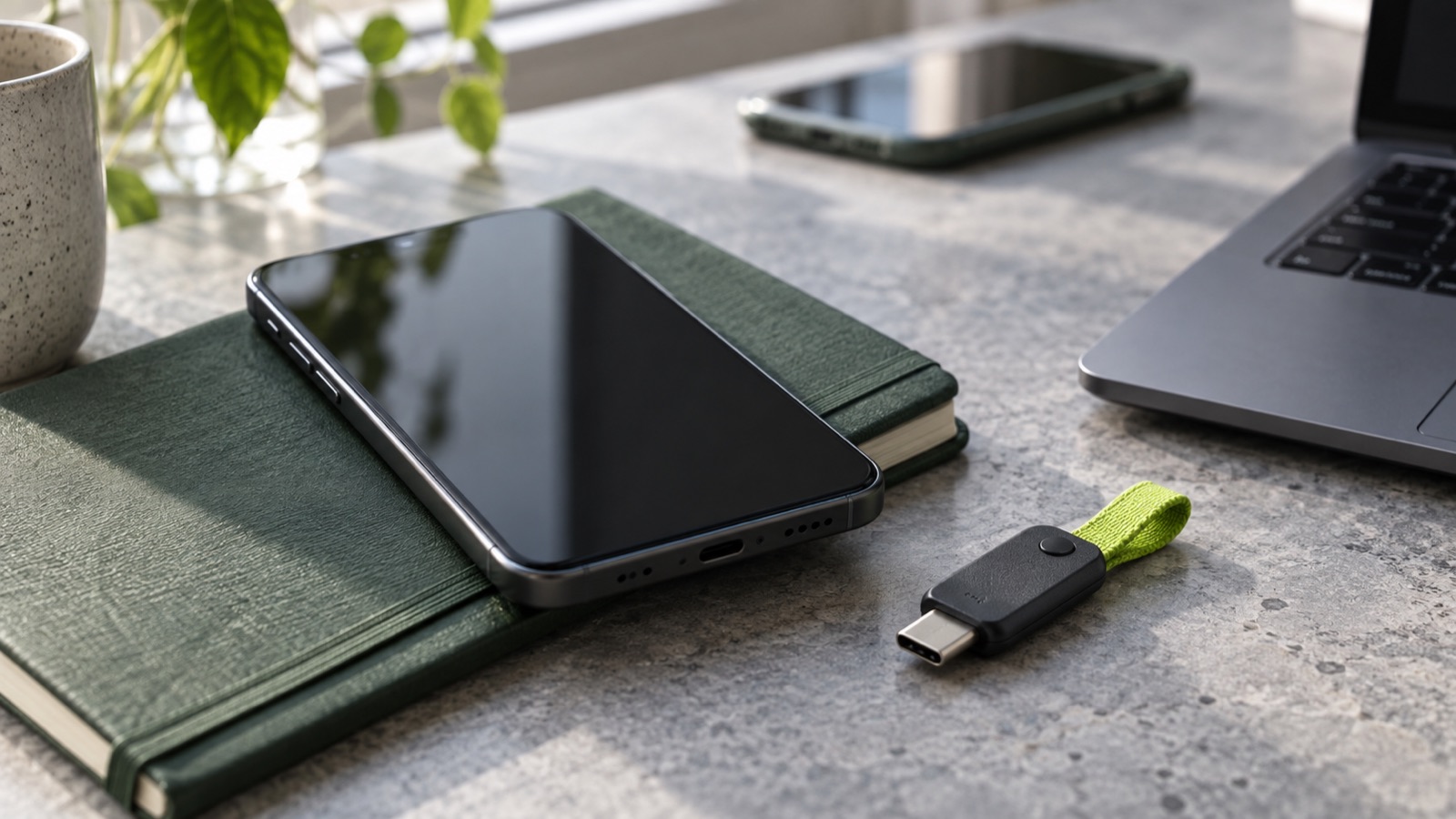
Losing a phone does not always mean losing the passkeys on it. A passkey saved in a synchronized password manager may be available on another trusted device. A credential stored only on the missing device presents a different problem.
The distinction matters before an emergency. “I use passkeys” describes a sign-in method, but it does not tell you where the credentials live or how you regain access. Recovery depends on the provider storing the passkey, the devices still available, and the fallback methods offered by each account.
What a passkey changes
A passkey uses a pair of cryptographic keys. The service keeps a public key; the private key is protected by the user’s device or credential provider. A device unlock, such as a fingerprint, face check, or PIN, can authorize its use.
As Apple’s security explanation describes, the private key is not shared with the website. Passkeys also bind authentication to the relevant service, which helps resist the familiar phishing pattern of entering a reusable password on an imitation site.
That protection does not remove the need to secure the device or the account used to synchronize credentials. It also does not mean every website has removed passwords, recovery emails, or other fallback routes. Those routes remain part of the account’s security.
Find out where yours are stored
A passkey can be synchronized through a credential provider or remain tied to particular hardware. The label shown when you create it is worth reading.
Apple describes passkeys synchronized through iCloud Keychain as end-to-end encrypted. Its documentation explains how they become available on approved devices and describes recovery mechanisms for cases in which devices are lost.
Google’s Chrome documentation distinguishes passkeys saved in Google Password Manager from credentials stored using Windows Hello, a local Chrome profile, or a physical security key. Those storage choices do not all have the same backup behavior.
For example, Google’s documentation warns that a Windows Hello passkey saved on a computer cannot be recovered after that computer is lost or its operating system is reinstalled. It also explains that passkeys saved on a security key are not backed up.
A hardware-bound credential can be a deliberate choice. The consequence is that recovery needs another registered credential or a separate route accepted by the service. Do not assume that signing into a cloud account recreates every passkey you have ever made.
A replacement phone needs its own trust path
With a synchronized passkey, the immediate problem may be regaining access to the credential provider rather than resetting each website account individually.
Apple’s documentation describes recovery protections involving the Apple Account, trusted phone numbers, device passcodes, and other configured recovery options. Google describes protections for encrypted passkeys using an Android screen lock or Google Password Manager PIN, depending on the setup.
The precise steps depend on the account and device state. A person who still has an approved laptop is in a different position from someone who has lost every trusted device and their phone number.
This is why a recovery plan should identify the independent things you still control. A second device, a separately stored recovery code, or a recovery contact can be useful only where the relevant service supports it and it has been configured correctly. Merely knowing that a feature exists does not enable it.
Signing in through another device is not a backup
You may be able to use a passkey on your phone to sign in on a nearby computer. A QR code can start this cross-device sign-in process, followed by confirmation on the device holding the credential.
That process does not necessarily copy the passkey to the computer. It can simply use the credential that remains on the phone. If the phone later disappears, the earlier QR-code sign-in is not evidence that the computer now holds a recoverable copy.
After a successful sign-in, check the account’s security settings if you want to register another passkey. Look for the saved credential and its storage provider, rather than inferring that registration happened in the background.
This distinction is particularly useful on shared computers. Being able to authenticate from your own phone does not require leaving a reusable credential on someone else’s machine.
Prepare a route that survives one loss
Choose a few important accounts first: the credential provider, primary email, and services whose loss would interrupt work or access to money. For each, identify the passkey location and an alternative supported sign-in route.
Where the service allows several credentials, an additional passkey on separately stored hardware can provide another route. Where it offers recovery codes, follow its instructions and keep the codes somewhere accessible without the missing phone. Never put the only copy inside the account those codes are meant to recover.
Check whether recovery depends on the same phone number, email inbox, or device you are trying to replace. Several nominally different options can still fail together if they all depend on one lost item.
Test the alternative through a normal sign-in while the main device is still available. Avoid deleting working credentials merely to simulate an emergency. The useful test is whether you understand and can use another valid route.
After a phone goes missing
Use the device provider’s official lost-device process and review the affected accounts from a trusted device. The right sequence depends on what remains accessible and whether the phone was protected by a strong screen lock.
In each account, review registered credentials and active sessions using the service’s own controls. Removing a passkey, signing out a session, and remotely locking a device are different actions; one should not be assumed to perform the others.
Be careful with unsolicited messages claiming to help recover the phone or account. Navigate to the provider’s known support pages yourself. An urgent recovery situation makes convincing imitation messages harder to assess.
For a workplace account, involve the organization’s administrator through its established channel. Managed devices and enterprise credential policies can impose requirements that consumer instructions do not cover.
Authentication is only one permission check
A successful passkey sign-in establishes access to an account. It does not decide whether a particular payment or automated action should proceed.
A financial workflow may still need transaction limits, a specific approval, or a second person. Our longread on AI agent payment permissions explains why these controls belong around the action itself.
Recovery design deserves the same care. A route that restores access should be understandable to the legitimate user while preserving the account’s protections. The relevant question is whether the configured route works under the loss you are actually trying to survive.
Questions readers ask
Will my passkeys appear automatically on a new phone?
That depends on their storage provider and whether you can complete its account and encryption recovery process. A credential stored only on lost hardware does not become synchronized retroactively.
Does scanning a QR code copy my passkey?
A cross-device sign-in can use a passkey from another device without saving it on the computer where you are signing in. Check the service’s credential settings before assuming a new passkey exists.
Is a security key a backup for every passkey?
No. It is an alternative only for accounts where you have registered a supported credential on that key. Store it separately if its purpose is to survive loss of your main device.
Can the website recover my private key?
The website’s public key is not a backup of your private key. The service may offer a separate account-recovery process that lets you register a new credential.
Sources
Sources reviewed September 26, 2026. Provider interfaces and recovery requirements can change; consult the linked official instructions for your current setup.